
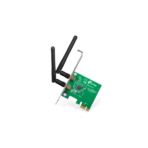
Ultimate Guide to TP-Link 300Mbps Wireless N PCI Express Adapter TL-WN881ND
The TP-Link TL-WN881ND is an internal PCI Express wireless network adapter designed to provide stable high-speed connectivity to desktop computers. Operating on the Wireless N standard, this card inserts directly into a motherboard expansion slot to bypass external port restrictions. It offers an excellent, long-term solution for daily office computing, standard web browsing, and smooth online media streaming without the need for physical Ethernet cables.
Key Features and Specifications
This internal hardware card combines multi-antenna signal processing with versatile case mounting options.
- PCI Express Interface: Utilizes a standard PCIe slot to establish a high-bandwidth motherboard link with zero port latency.
- 300Mbps Wireless Performance: Delivers data transmission rates up to 300Mbps on the 2.4GHz frequency band.
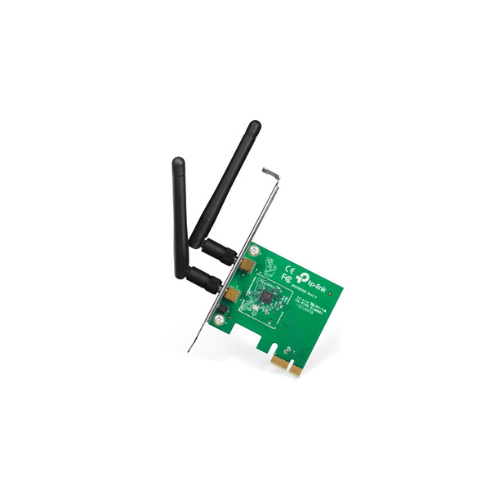
- MIMO Multi-Antenna Technology: Employs two external antennas to reduce signal degradation over long distances and penetrate physical barriers.
- Detachable Antenna Architecture: Features two standard omnidirectional antennas that can be unscrewed and upgraded easily.
- Advanced WPA2 Security: Deploys dependable encryption standards to safeguard your local wireless connection from external threats
- WPS Quick Security Sync: Includes software-based Wi-Fi Protected Setup features to establish a secure link with a single click.
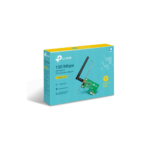
- Low-Profile and Full-Height Brackets: Ships with two separate structural brackets to ensure compatibility with standard or slim desktop cases.
Enhanced Signal Processing and Internal Stability
The primary advantage of the TL-WN881ND over basic wireless USB keys is its direct connection to the motherboard bus. External USB adapters are prone to overheating during prolonged file transfers, accidental physical damage, and internal USB hub data delays.
By plugging directly into a PCI Express slot, this card gains a steady power supply and benefits from the interior cooling fans of your computer tower. This permanent interface ensures consistent network availability and reduces system lag compared to legacy peripheral adapters.
The implementation of MIMO technology dramatically improves coverage compared to single-antenna cards. By using two antennas to transmit and receive data simultaneously, the device mitigates reflection interferences and maintains a stable connection even when the desktop tower is placed far away from the main home router.
Detachable Antennas and Case Versatility
The physical layout of the card is engineered to fit into diverse office and home computing environments. The detachable antennas connect via standard RP-SMA threaded ports on the back bracket. This allows users to easily unscrew the stock antennas and attach high-gain replacements or an extension cable if the desktop case is blocked by a heavy metal desk.
Additionally, the dual-bracket retail bundle guarantees a perfect fit for any computer case. The card comes with a standard full-height bracket for typical gaming or home towers, but users can quickly swap it for the included low-profile bracket to mount the card inside slim business workstations.
Hardware Installation and Network Activation
Setting up an internal PCIe network card requires a quick physical installation inside your computer casing.
Physical Installation Steps
- Shut down your desktop computer and completely remove the main power cable from the wall.
- Unscrew the side panel of the computer case to access the internal motherboard components.
- Identify an open PCIe slot and remove the matching metal slot cover on the back panel of the case.
- Insert the TL-WN881ND card firmly into the motherboard slot until the card locks securely into position.
- Tighten the bracket screw to fix the card to the frame, reattach the side panel, screw both antennas onto the rear ports, and power on your system.
Driver Setup Process
- Download the latest official device drivers from the TP-Link support website using an existing wired internet link or another device.
- Execute the installation wizard application as an administrator on your desktop operating system.
- Follow the quick onscreen prompts to complete the quick setup wizard and initialize the wireless chipset.
- Open your system network tray, choose your local Wi-Fi name, and input your security password to connect to the internet.
Frequently Asked Questions
Does the TP-Link TL-WN881ND support high-speed 5GHz Wi-Fi bands?
No, this adapter operates exclusively on the standard 2.4GHz frequency band. It uses Wireless N technology on this band to achieve maximum efficiency and long-range stability for everyday tasks
Is this internal wireless card compatible with Windows 11?
The hardware officially supports a wide range of operating systems, including Windows 10, 8, and 7. For modern Windows 11 systems, you should check for updated community-tested drivers or use native Windows update plug-and-play drivers.
Can I upgrade the antennas to improve my wireless range?
Yes, the card uses standard RP-SMA connector threads. You can unscrew the factory-issued antennas and attach higher-power antennas or an extended desktop antenna base to clear local furniture obstacles.
Why should I choose a PCIe card instead of a USB network adapter?
A PCIe card connects directly to the system motherboard bus, which offers better thermal dissipation and more reliable performance. It frees up your external USB ports






























Reviews
There are no reviews yet.