
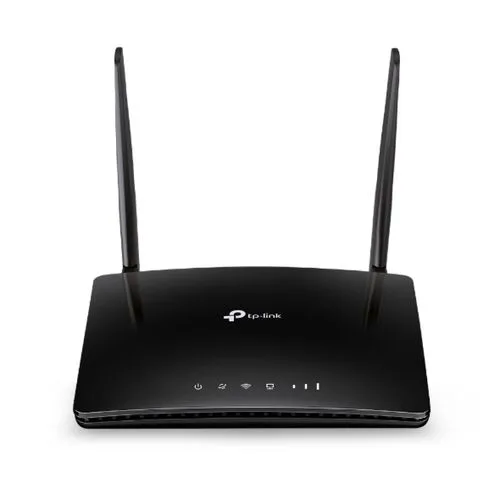
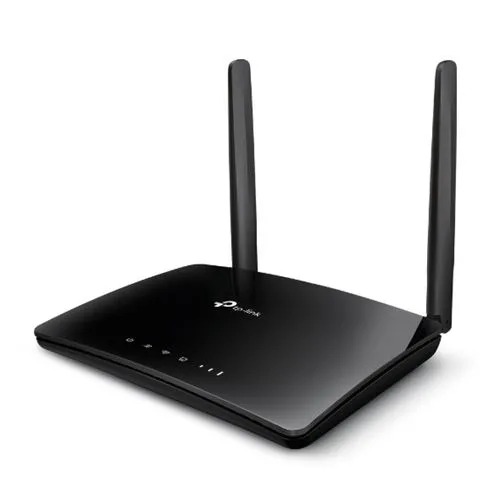
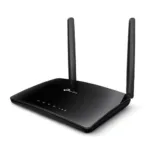
TP-Link Archer MR400 Router AC1200 Wireless Dual Band 4G LTE
Key Features
Brand TP-Link
Cutting-edge 4G network
AC1200 Wi-Fi
Plug a SIM card and play
Two detachable advanced LTE antennas
Wi-Fi router mode
1 Year Warranty
Ultimate Review of TP-Link Archer MR400 AC1200 Wireless Dual Band 4G LTE Router
The TP-Link Archer MR400 stands as a premier plug-and-play cellular routing solution engineered for locations where traditional broadband internet is unavailable, unreliable, or slow. This versatile device combines an integrated 4G LTE modem with high-speed AC1200 dual-band Wi-Fi to deliver stable connectivity across residential homes, remote office branches, and temporary worksites. Here is everything you need to know about this hardware asset to optimize your backup or primary mobile network.
Key Hardware Specifications
This cellular gateway is engineered to balance high-speed wireless coverage with robust physical device connections.
- Cellular Modem: Integrated Category 4 4G LTE modem supporting download speeds up to 150 Mbps.
- Wireless Standards: IEEE 802.11ac Wi-Fi 5 delivering up to 1200 Mbps of combined bandwidth.
- Band Speed Allocation: Sub-divided into 867 Mbps on 5 GHz and 300 Mbps on 2.4 GHz.
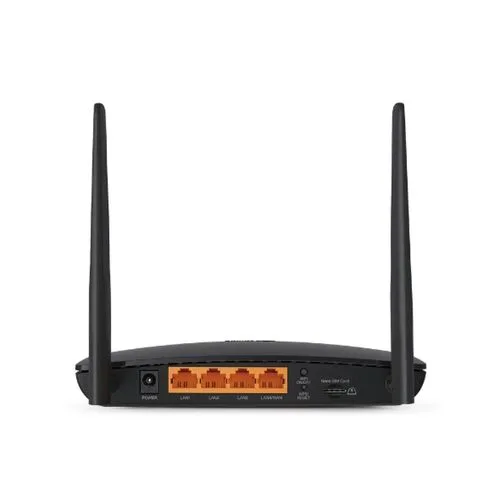
- Physical LAN Ports: Three 10/100 Mbps Ethernet LAN ports for traditional wired client devices.
- Flexible WAN Port: One 10/100 Mbps Ethernet LAN/WAN port for standard broadband failover.
- SIM Card Interface: Built-in Nano SIM card slot for instant mobile network provisioning.
- Antenna Array: Dual detachable advanced LTE antennas for optimized cellular signal reception. [
Advanced 4G LTE Connectivity and Wi-Fi Performance
The foundational advantage of this router is the inclusion of an internal 4G LTE modem that bypasses the need for fixed landlines.
By inserting a compatible Nano SIM card into the rear slot, the router connects to global cellular towers to establish an immediate high-speed internet link. The detachable nature of the two external LTE antennas allows advanced users to swap them out for high-gain outdoor directional antennas, making it possible to pull in strong signals in deep rural zones or metal-clad industrial buildings
The internal wireless controller splits traffic between two discrete Wi-Fi bands. The 2.4 GHz band handles long-distance coverage and penetrates thick walls, while the clearer 5 GHz band manages intensive tasks like high-definition video streaming, online gaming, and large data transfers without buffering
Ideal Deployment Use Cases
Remote Holiday Homes and Cabins
It avoids expensive fixed-line installation fees by utilizing local cellular networks to provide complete household Wi-Fi.
Construction Sites and Pop-Up Shops
The temporary setup provides immediate network access for point-of-sale systems, security cameras, and laptop workstations with zero downtime.
Corporate Network Failover Protection
Administrators can hook up a primary cable modem to the WAN port and configure the 4G LTE connection as an automated backup link if the landline drops.
Software Intelligence and Device Management
The router is managed via a clean visual interface accessible through any standard web browser or the TP-Link Tether mobile application.
The software platform supports advanced security protocols including WPA and WPA2 wireless encryption layers. Parents or network administrators can utilize integrated parental control tools to restrict access times, filter explicit keywords, or block specific URL addresses completely.
Guest network functionality allows you to broadcast isolated Wi-Fi names, ensuring visitors enjoy fast internet access without gaining visibility over your private network storage drives or connected household hardware.
Quick Physical Setup and Optimization
Physical deployment is completely streamlined to minimize technical configuration friction.
- Install your activated Nano SIM card directly into the designated slot on the rear panel until it clicks.
- Screw the two included LTE antennas tightly onto the gold coaxial SMA connectors on the back.
- Plug the provided power adapter into a wall outlet and connect it to the router power input.
- Press the physical power button and wait for the front status LED lights to stabilize.
- Search for the default Wi-Fi network name printed on the bottom product label using your smartphone.
- Complete the initial password setup via the Tether mobile app or by navigating to the local administration webpage.
To achieve maximum download speeds, place the router near an exterior window rather than deep inside an enclosed closet or basement server rack. This optimal positioning allows the external antennas to maintain a clear line of sight with nearby carrier towers to minimize internal signal attenuation






























Reviews
There are no reviews yet.