
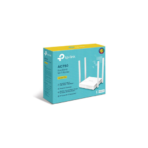
Ultimate Guide to TP-Link Archer C24 AC750 Dual-Band Wireless Router
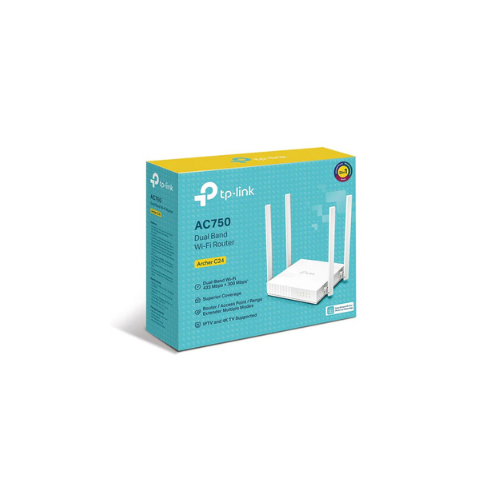
The TP-Link Archer C24 (TL-ARCHER-C24) is a highly compact, entry-level wireless router designed to provide reliable dual-band connectivity for apartments, small homes, and student dorms. Operating on the Wi-Fi 5 standard, this router offers an efficient way to distribute internet traffic across separate frequencies to prevent network crowding. It delivers a budget-friendly, space-saving solution for everyday household tasks such as web browsing, email management, high-definition streaming, and virtual learning.
Key Features and Specifications
This compact router pairs dual-band wireless routing with versatile operating modes to satisfy core networking requirements
- AC750 Dual-Band Wireless: Delivers combined transfer speeds up to 750Mbps.
- Optimized Performance: Provides up to 433Mbps on the clear 5GHz band and 300Mbps on the far-reaching 2.4GHz band.
- 4 External Antennas: Uses omnidirectional high-gain antennas to optimize signal distribution and maintain link stability.
- Multi-Mode Functionality: Transitions easily between Router, Access Point, and Range Extender modes.
- Built-In Fast Ethernet Ports: Features one WAN port and four LAN ports for stable wired connections to desktop setups or media centers.
- IPv6 Support: Fully compatible with the latest Internet Protocol version to ensure long-term future-proof networking.
- Compact Footprint: Designed with a minimalist, low-profile frame that fits comfortably into tight spaces.
Optimized Bandwidth and Smart Traffic Management
The Archer C24 eliminates common network bottlenecks through concurrent dual-band operations. Users can assign simpler tasks such as text-based browsing, social media scrolling, or smart home background communication to the 2.4GHz band.
Meanwhile, demanding tasks like streaming online movies, downloading files, or making video calls can run on the clearer 5GHz band. This frequency separation prevents network slowdowns, decreases lag, and ensures that multiple active household users maintain a steady connection.
Multi-Mode Versatility
The system firmware shifts its core configuration easily to adapt to varied localized networking needs.
- Router Mode: Connects directly to your service provider modem to act as the primary internet gateway for your home.
- Access Point Mode: Transforms an existing wired network into a fresh wireless hotspot for surrounding clients.
- Range Extender Mode: Captures an existing weak wireless signal from another source and projects it deeper into your home to boost coverage.
Quick Installation and Management Steps
Setting up your wireless network takes only a few minutes using standard mobile application wizards or web utilities.
Tether Mobile App Setup
- Download the official TP-Link Tether app from the Apple App Store or Google Play Store onto your smartphone.
- Connect your mobile device to the default Wi-Fi network printed on the technical specification label on the base of the router.
- Launch the application, log into your TP-Link ID profile, and select the Archer C24 from the local device list.
- Follow the step-by-step visual prompts to complete the quick installation wizard and apply a strong network password.
Web Browser Configuration
- Link your computer to one of the available LAN ports using an Ethernet cable, or connect wirelessly via the default Wi-Fi name.
- Open any web browser and enter the standard administrative management link printed on the base label.
- Follow the configuration wizard to establish your ISP login credentials and secure your device settings.
Frequently Asked Questions
Is the TP-Link Archer C24 backward compatible with older devices?
Yes, the router is fully backward compatible with legacy devices running older wireless standards like Wi-Fi 4 or Wi-Fi 3. It will connect seamlessly with older laptops, tablets, and smart devices, allowing them to run at their maximum supported data speeds.
Can I manage this router remotely when away from home?
Yes, you can manage settings remotely by linking the router to your cloud ID through the Tether mobile application. This allows you to monitor connected clients, adjust parental filters, and check network health from any internet connection worldwide.
Does this model include built-in parental controls?
Yes, the management software includes useful parental control features. These tools allow you to manage internet access schedules, pause the internet for specific devices, and block inappropriate domains or content profiles to ensure a safe browsing environment.
What is the purpose of the four external antennas?
The four external antennas are mathematically arranged to maximize signal coverage. They expand the overall wireless footprint and stabilize signal reception, allowing the router to project a reliable connection through standard interior walls.






























Reviews
There are no reviews yet.