
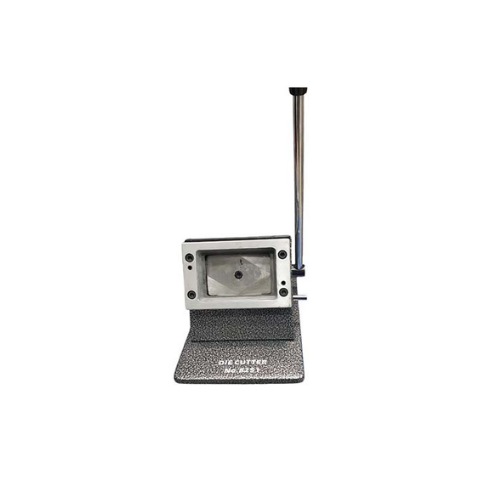
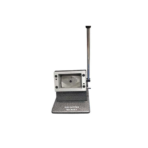
PVC ID Card DIE Cutter
Key Features
Brand:
Materials: Cuts PVC, business cards, photos, and paper.
Cutting Method: Manual operation for precise control.
Cutting Thickness: Can cut materials between 0.1mm to 1mm thickness.
Ideal For: Small businesses, print shops, photo studios, and personal use for crafting and custom card creation.
Benefits: Compact, cost-effective, and versatile for low to medium-volume cutting tasks.
FAST DELIVERY
PVC ID Card DIE Cutter: Ultimate High-Speed Professional Guide
The PVC ID Card DIE Cutter is a powerhouse in the professional card identification and badge printing market. This heavy-duty mechanical tool eliminates manual trimming errors while delivering crisp, clean edges for corporate security badges, membership cards, and retail loyalty programs. It serves as a reliable, heavy-duty solution designed to streamline inventory tracking, visitor management, and credentialing systems for organizations of all sizes. By utilizing advanced engineering, this flexible machine helps companies boost daily productivity, reduce administrative downtime, and maintain a highly organized workspace. Modern workplaces rely on this hardware to eliminate manual sorting bottlenecks and automate repetitive categorization tasks. Its robust build quality ensures it handles high-volume punch cycles without dulling or experiencing performance drops. Businesses looking to scale their security infrastructure find this device to be an indispensable asset for daily card production.
This comprehensive guide covers everything you need to optimize this device for your business workflow.
Key Technical Specifications
Understanding the hardware capabilities helps you maximize your investment. The device balances speed with diverse connectivity options.
- Punch Mechanism: High-leverage manual arm with internal gear reduction
- Cutting Matrix: High-grade hardened steel die with exact rounding
- Standard Capacity: Processes rigid sheets up to 30 mil thick
- Output Dimensions: Standard CR80 wallet card sizes with pre-rounded corners
- Base Construction: Heavy solid cast-iron frame with non-slip pads
- Alignment Guide: Micro-adjustable slide rail for precision paper feeding
Top Features and Business Benefits
Ultra-Fast Mechanical Punching
The advanced leverage technology means you never buy electricity or blade replacements. It cuts standard card sheets at lightning speeds, keeping your badge or organization pipeline moving without delays.
Standalone Production Mode
The built-in positioning tray allows you to punch pre-printed designs directly from the sheet layout. You can produce cards without being tethered to a computer or mobile device.
Flexible Network Connectivity
Integrate the machine seamlessly into any office environment. Multiple users can share the printer via network cables or wireless connections. Mobile device printing is fully supported through dedicated applications.
Red and Black Printing Capability
Using specific continuous rolls, you can print in both black and red colors. This is ideal for highlighting critical information like expiration dates, allergen alerts, or fragile shipping warnings.
Simple Step-by-Step Setup Guide
Follow these steps to get your professional label printer running quickly.
Step 1: Unpack and Connect Power
Remove all protective tapes from the machine. Plug the power cord into the back of the printer and connect it to an electrical outlet.
Step 2: Load the Label Roll
Open the top cover of the printer. Drop the roll spool into the guide channels. Feed the edge of the label roll into the slot until the machine automatically aligns the paper.
Step 3: Establish a Network Connection
Use the LCD screen menu to select your preferred connection type. For wireless setups, search for your local network name and enter the security password.
Step 4: Install Software and Drivers
Download the official P-touch Editor design software on your computer. Run the installer package and follow the prompts to complete the device recognition.
Effective Troubleshooting and Maintenance
Keep your machine operating at peak performance with basic maintenance habits.
Resolving Paper Jams
Turn off the power immediately. Open the main compartment cover and gently pull the stuck media out of the roller path. Clean the cutter blade with a lint-free cloth if adhesive residue builds up.
Fixing Connectivity Drops
If the wireless signal drops, restart your network router and the printer simultaneously. Ensure the printer sits within a reasonable range of your internet access point.
Cleaning the Print Head
Poor print quality or white lines indicate a dirty print head. Turn off the machine and wipe the thermal print head element gently using a cleaning swab dipped in isopropyl alcohol.






























Reviews
There are no reviews yet.