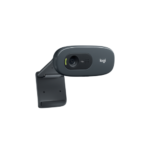
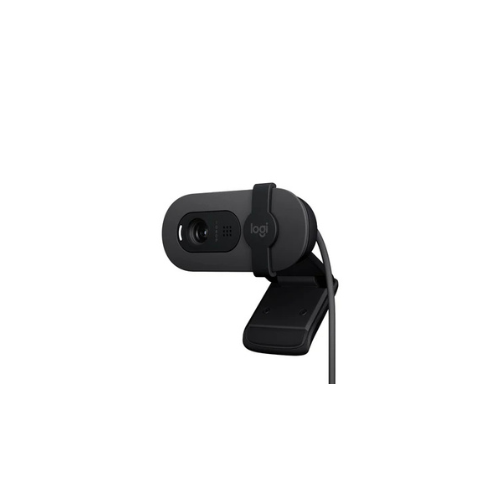
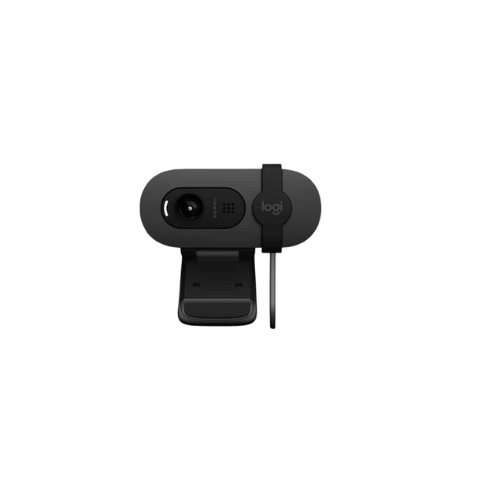
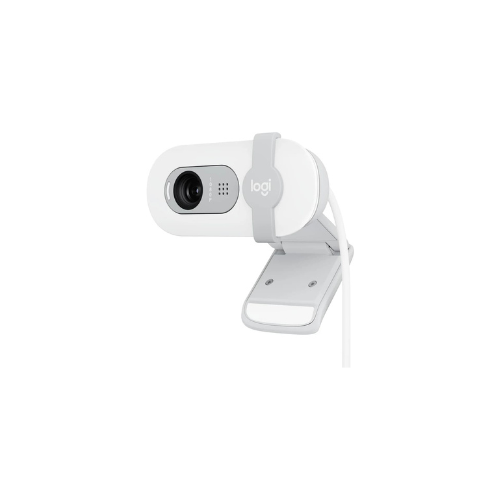
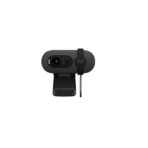
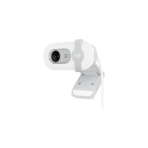
Logitech Brio 100 Webcam Full HD 1080p-960-001585
Key Features
Brand: Logitech
Up to Full HD 1080p Resolution at 30 fps
58° Diagonal Field of View
Fixed Focus, Plastic Lens
Omnidirectional Mic
RightLight Auto-Light Balance
Integrated Privacy Shutter
USB-A Connection
Windows, Mac, and Chrome Compatible
FAST DELIVERY
Ultimate Guide to Logitech Brio 100 Full HD 1080p Webcam 960-001585
The Logitech Brio 100 (960-001585) is a high-quality, user-friendly desktop webcam designed to upgrade video call experiences on laptops and desktop computers. Delivering sharp Full HD 1080p resolution, this compact webcam features automated light balancing and a built-in privacy shutter. It provides an ideal, low-maintenance hardware solution for remote work, virtual learning, and digital meetings across major streaming platforms.
Key Features and Specifications
This desktop webcam pairs optimized imaging processing with a clean physical frame to satisfy daily video requirements. [1]
- Full HD 1080p Video: Captures crisp video at 30 frames per second for professional, high-definition calls.
- RightLight 2 Technology: Adjusts brightness automatically to clear up shadows in dim or backlit room environments.
- Integrated Privacy Shutter: Features a physical slide cover to block the lens instantly for guaranteed personal security.
- Built-In Omnidirectional Microphone: Captures voices clearly while suppressing basic ambient office noise.
- USB Plug-and-Play Simplicity: Connects instantly to your computer without requiring specialized software installations.
- Logi Tune Software Support: Allows users to customize color balance, frame crop, and apply firmware updates easily.
- Sustainable Design: Built using up to 77 percent recycled plastic components to reduce manufacturing environmental waste.
Automated Lighting and Digital Clarity
The Brio 100 solves the problem of grainy, dark video feeds caused by poor home office lighting. Standard built-in laptop cameras often struggle with shadows or bright windows, resulting in silhouette effects.
This model utilizes specialized RightLight 2 auto-light balance software. The webcam constantly analyzes incoming light streams, boosting exposure in dark corners and softening harsh glare. This ensures your face remains bright and clear during critical work presentations, even if you are working in a poorly lit bedroom or a bright office nook.
Secure Privacy Controls and Universal Integration
The hardware structure prioritizes user privacy alongside cross-platform computing workflows.
- Physical Slider Shutter: Slides smoothly over the glass lens when your meeting concludes, providing a foolproof shield against accidental video feeds or digital intrusion.
- Platform Certification: Functions flawlessly with major communication applications, including Zoom, Microsoft Teams, Google Meet, and SkypE
Getting your video hardware configured takes less than a minute using standard USB ports.
Physical Placement and Mounting
- Unfold the integrated mounting clip located on the base of the webcam frame.
- Place the webcam on the top edge of your monitor screen or laptop display panel.
- Press the foot of the clip firmly against the back of your monitor casing to secure the camera grip.
- Tilt the webcam body up or down manually to find your ideal eye-level angle.
Connecting to Your Operating System
- Insert the attached USB type A cable directly into an open port on your computer tower or laptop body.
- Wait for your operating system to auto-detect the device, which takes only a few seconds.
- Launch your video conferencing software and navigate to the audio/video settings pane.
- Select the Logitech Brio 100 as your primary active video capture camera and input microphone.
Frequently Asked Questions
Does the Logitech Brio 100 require separate driver software?
No, the webcam is a native plug-and-play device that utilizes standard USB Video Class protocols. Your computer will recognize the hardware immediately, allowing you to jump straight into meetings without tedious installation processes.
Can I adjust the webcam settings like brightness and contrast manually?
Yes, you can download the free Logi Tune application from the official Logitech website. The software utility lets you fine-tune image properties, adjust color filters, toggle auto-exposure, and verify your device firmware status.
What operating systems are fully compatible with this webcam model?
The device officially supports modern operating systems including Windows 10 and Windows 11, macOS 10.15 and later, and ChromeOS. It functions reliably across both desktop computer towers and compact laptop architectures.
How long is the integrated USB cable attached to the camera?
The hardware features a built-in, durable USB-A cable measuring approximately 1.5 meters (5 feet). This length provides ample slack to route the cord neatly behind large desktop monitors or down to a floor-standing PC tower.






























Reviews
There are no reviews yet.