
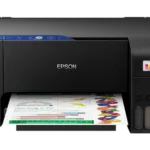

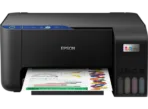
Epson EcoTank L3210 Printer USB All-in-One Ink Tank
Key Features
Brand: Epson
4-color, fast, A4 3-in-1 printer
Ultra-low-cost printing
Fulfills versatile printing needs.
Epson smart panel app
Hassle-free ink tank system
1 Year Warranty
Epson EcoTank L3210 All in One Ink Tank Printer Review and Guide
The Epson EcoTank L3210 is a heat free multi function ink tank printer designed for affordable home and office printing. This reliable USB device handles printing, scanning, and copying duties to deliver exceptionally low operational costs. This guide outlines its main features, hardware performance, and initialization steps.
Key Features of the EcoTank L3210
-
- Ultra Low Cost Printing: Spill free ink bottles provide a high page yield to drastically lower cost per page.
- Epson Heat Free Technology: Consumes less power by eliminating heat during the ink ejection process.
- Integrated Front Ink Tanks: Compact built in tank design allows easy monitoring of remaining ink levels.
- High Quality Borderless Printing: Supports borderless photo printing up to four R sizes for crisp visual media.
- Space Saving Design: Sleek chassis fits comfortably into tight desk spaces or small home work stations.
- High Yield Ink Bottles: Single set of ink bottles produces thousands of black and color pages.
- Smart Bottle Design: Unique nozzle keys ensure each color bottle fits only into its designated tank.
- Reliable Draft Printing: Draft mode speeds up document printing for internal office review.
- Sturdy Paper Tray: Front loading system protects paper from dust and debris accumulation.
- Long Lasting Printheads: Durable Micro Piezo printhead tech ensures consistent performance over years of usage.
Specifications and Performance
Print and Scan Metrics
-
- Print Resolution: Maximum resolution up to 5760 by 1440 dpi for sharp text and vivid graphics
- Print Speed: Up to 33 pages per minute in black draft and 15 pages per minute in color draft
- Scan Resolution: Optical flatbed scanner capturing up to 600 by 1200 dpi for clear digital copies
Hardware and Connectivity
-
- Interface: High Speed USB 2.0 interface for secure direct computer connectivity
- Paper Tray Capacity: Input tray holds up to 100 sheets of plain paper or 20 sheets of premium glossy photo paper
- Ink Compatibility: Uses genuine Epson 003 series black, cyan, magenta, and yellow ink bottles
Step by Step Installation and Setup
1. Unboxing and Component Prep
Carefully extract the printer from its box and remove all protective blue transport tape. Set the machine on a flat level surface near your computer and a power outlet.
2. Filling the Ink Tanks
Open the ink tank unit cover on the front right side of the machine. Remove the cap of the black ink tank. Uncap the black ink bottle, invert it, and place it onto the tank filling port. Allow the ink to fill to the upper line, then repeat for the cyan, magenta, and yellow tanks.
3. Charging the Ink System
Plug the power cord into the wall and turn the printer on. Wait for the power light to stop flashing. Press and hold the stop button for five seconds until the power light flashes to begin the initial ink charging process, which takes about eleven minutes.
4. Loading Paper and Alignment
Pull up the rear paper support tray and extend the output tray shield. Place a stack of plain A4 paper into the rear feed guide and slide the edge guide snugly against the paper.
5. Computer USB Connection
Do not plug in the USB cable yet. Download the official software driver installation package from the Epson support page on your computer. Run the setup file, plug in the USB cable when prompted by the installer, and complete the final configuration.
Frequently Asked Questions
Does the Epson EcoTank L3210 support wireless Wi Fi printing?
No this specific model relies strictly on a high speed USB connection and does not feature built in wireless or networking capabilities.
What should I do if the print output has lines or missing colors?
Run a nozzle check pattern from the printer maintenance utility menu on your computer. If the pattern is broken, execute a printhead cleaning cycle to clear the ink delivery system blocks.
Can I transport the L3210 printer after filling the ink?
Yes but you must securely snap the ink tank caps shut, close the main cover, and keep the printer completely level during transport to prevent internal leaks.
Does this printer use ink cartridges?
No the EcoTank series replaces traditional ink cartridges with large refillable ink tanks that receive liquid ink directly from bulk bottles.






























Reviews
There are no reviews yet.