
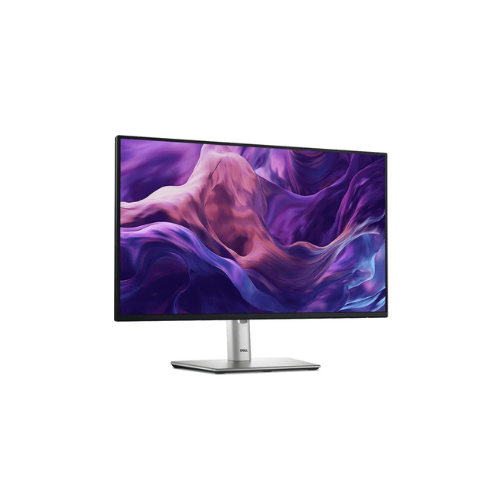
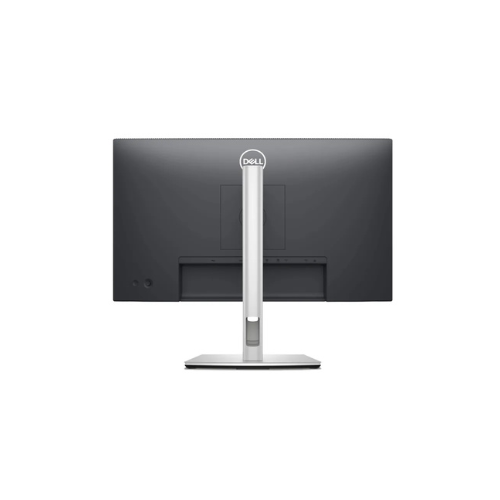
Dell P2425H 23.8″ FHD Monitor
Key Features
Brand: Dell
Screen Size: 24-inch
Screen Type: Flat
Resolution: Full HD (1920 x 1080)
In-Plane Switching (IPS) technology
Refresh Rate: 100 Hz
FAST DELIVERY
1 Year Warranty
Dell P2425H 23.8 Inch FHD Monitor Review and Technical Overview
The Dell P2425H is a professional grade 23.8 inch Full HD monitor engineered to maximize workplace productivity, visual comfort, and desktop connectivity. Featuring an In Plane Switching display panel, a high refresh rate, and an ergonomically adjustable stand, this business monitor provides sharp image performance for daily corporate and creative tasks. This comprehensive guide covers key product features, core technical specifications, and setup methods.
Premium Design and Key Features
Color Consistent In Plane Switching Panel
The monitor utilizes an advanced In Plane Switching screen configuration that delivers vibrant colors across wide 178 degree viewing angles. It covers 99 percent of the sRGB color gamut, ensuring that digital graphics, spreadsheets, and video content appear accurate and consistent regardless of your physical seating position.
Fluid Motion with 100Hz Refresh Rate
Unlike standard office monitors that operate at 60Hz, the P2425H upgrades the screen performance to a 100Hz refresh rate. This hardware enhancement reduces motion blur, minimizes screen flickering, and makes daily tasks like scrolling through long web pages, dragging windows, and viewing animations feel significantly smoother.
Hardware Based Eye Comfort Technology
The display integrates certified ComfortView Plus technology to safeguard visual health during long office shifts. This built in hardware solution reduces harmful blue light emissions without degrading color accuracy. It pairs with a flicker free screen driver to minimize eye strain and fatigue during extended computer work sessions.
Extensive Connectivity and Ergonomic Stand
The rear input panel features a versatile array of connection ports including HDMI, DisplayPort, and VGA to interface with old and new computer hardware. A built in USB hub allows users to plug peripherals directly into the monitor frame. The fully adjustable stand supports height alteration, tilt adjustments, swivel movements, and 90 degree pivot rotation for vertical document viewing.
Technical Specifications
Screen Size: 23.8 Inches Diagonal Display Space
Panel Technology: In Plane Switching LED Backlit LCD
Native Resolution: 1920 by 1080 Pixels Full HD
Refresh Rate: 100Hz Maximum Performance
Color Gamut: 99 Percent sRGB Color Coverage
Brightness Rating: 250 Candelas Per Square Meter
Static Contrast Ratio: 1500 to 1 High Contrast
Response Time: 5 Milliseconds Gray to Gray Fast Mode
Physical Interfaces: DisplayPort 1.2, HDMI 1.4, VGA, Four USB 3.2 Ports
Panel Technology: In Plane Switching LED Backlit LCD
Native Resolution: 1920 by 1080 Pixels Full HD
Refresh Rate: 100Hz Maximum Performance
Color Gamut: 99 Percent sRGB Color Coverage
Brightness Rating: 250 Candelas Per Square Meter
Static Contrast Ratio: 1500 to 1 High Contrast
Response Time: 5 Milliseconds Gray to Gray Fast Mode
Physical Interfaces: DisplayPort 1.2, HDMI 1.4, VGA, Four USB 3.2 Ports
Step-by-Step Installation Guide
Hardware Assembly and Placement
-
- Lay the monitor panel face down on a flat, soft cloth covered surface to prevent scratches.
- Fit the top tabs of the ergonomic stand riser into the rear slots of the monitor housing.
- Press the stand down firmly until the internal latch clicks securely into its locked position.
- Attach the heavy stand base to the bottom of the riser and tighten the integrated screw clock wise.
- Lift the assembled monitor upright and place it onto your desktop working surface.
Cable Connection and Configuration
Method A: Modern Digital Interface Setup
- Insert one end of a standard DisplayPort or HDMI cable into the back of the monitor.
- Connect the opposite end of the chosen digital cable to your desktop computer or laptop port.
- Link the included USB upstream cable from the monitor to your computer to activate the built in USB ports.
- Plug the main power cable into the rear AC input socket and connect it to a wall outlet.






























Reviews
There are no reviews yet.