

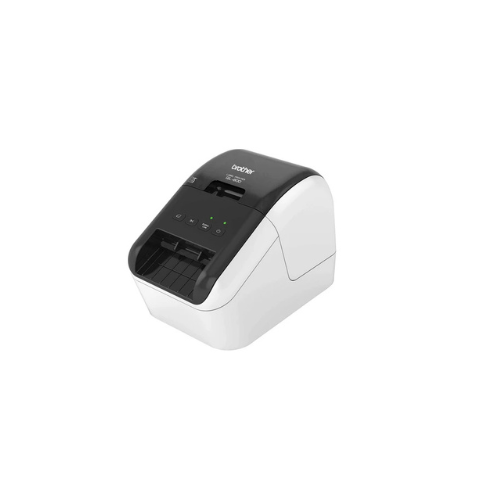
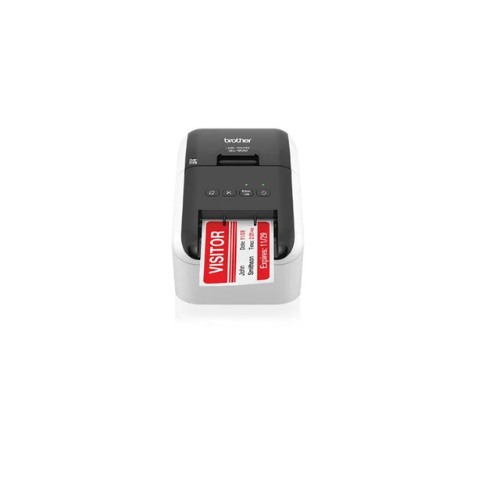
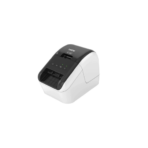
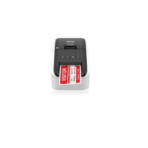
Brother QL-800 Label Printer High-Speed Professional
Key Features
Brand: Brother
Unique ability to print eye-catching two-colour labels in black and red on demand*
Flexibility to print bespoke continuous length labels to the size you want, up to 1m
Convenience of wireless to simply create and print labels directly from your mobile device**
Built-in automatic tape cutter for a professional finish
FAST DELIVERY
Brother QL 800 High Speed Professional Label Printer Review and Guide
The Brother QL 800 is a high speed professional label printer designed to streamline mailing, shipping, and administrative tasks. This plug and play desktop device offers unique two color printing capabilities without requiring expensive ink or toner. This comprehensive guide details its standout features, technical specifications, and hardware integration steps.
Key Features of the QL 800
-
- Ultra Fast Printing Speeds: Outputs up to ninety three standard address labels per minute to handle high volume labeling tasks.
- Two Color Printing: Prints in both black and red using special continuous length paper tape rolls.
- Plug and Label Technology: Connects via USB to instantly launch built in software without complex driver installation.
- Advanced Automatic Cutter: Integrated heavy duty cutter delivers clean custom length label cuts automatically.
- High Resolution Output: Produces crisp text and sharp graphics up to three hundred by six hundred dots per inch.
- Versatile Label Selection: Accommodates pre sized address labels, shipping labels, file folder labels, and continuous banners.
- Drop In Roll Design: Quick load roll guide design ensures perfect alignment and effortless roll changes.
- No Ink or Toner Required: Uses advanced direct thermal print technology to eliminate ongoing ribbon and ink costs.
- P touch Editor Integration: Connects with advanced design software to print bar codes, logos, and database files.
- Compact Desktop Footprint: Sleek lightweight chassis saves valuable desk space in busy office environments.
Specifications and Performance
Print and Media Metrics
-
- Print Resolution: Maximum precision rendering up to three hundred by six hundred dots per inch for clear barcode scanning
- Maximum Print Width: Supports wide format label printing paths up to two point three inches
- Maximum Label Length: Creates elongated continuous banner displays up to three feet long
Hardware and Connectivity
-
- Interface Link: High Speed USB two point zero interface for stable direct computer data transmission
- Control Buttons: Four front facing tactile keys for power, feed, cut, and Editor Lite software execution
- Power Supply: Internal switching electrical transformer designed for standard wall outlet connections
Step by Step Installation and Setup
1. Unboxing and Placement
Gently pull the label printer from its packaging material and remove all protective shipping films. Position the device on a stable flat work surface near your computer and a power outlet.
2. Loading the Thermal Label Roll
Press the cover open tabs on both sides of the machine to lift the top housing. Drop the specific Brother DK roll guide spindle into the secure slots. Thread the front edge of the label tape directly into the internal feed slot until it aligns properly.
3. Power Connection and Initialization
Connect the power cord to the rear AC port and plug it into a wall outlet. Press the power button on the front control panel. The status indicator light will change to green to show the printer is ready.
4. Direct Plug and Label Connection
Turn on your computer and connect the included USB cable to the back of the printer and an open computer port. Press the Editor Lite button on the printer until the green light illuminates. A pop up window will appear on your desktop allowing you to create labels immediately without downloading software.
5. Advanced Software Installation
To unlock full database integration and barcode creation, download the comprehensive P touch Editor software suite from the official Brother support website. Run the installer file and complete the step by step wizard instructions to finalize your setup.
Frequently Asked Questions
Does the Brother QL 800 require ink cartridges to print in red?
No this printer uses specialized direct thermal paper rolls that contain embedded heat activated black and red color layers to eliminate the need for traditional ink.
Can I print shipping labels from third party carriers on this device?
Yes this machine easily processes standard shipping labels from platforms like USPS, UPS, and FedEx when configured through your computer print options.






























Reviews
There are no reviews yet.