

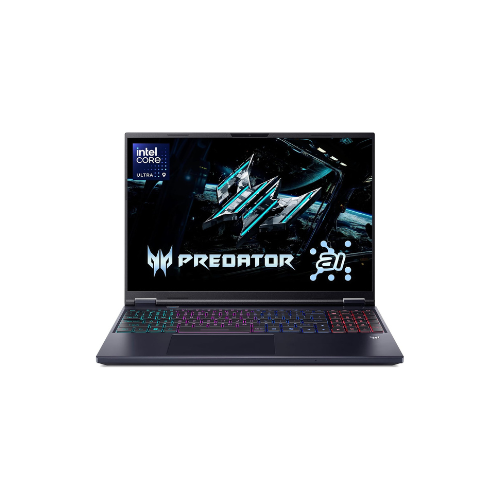
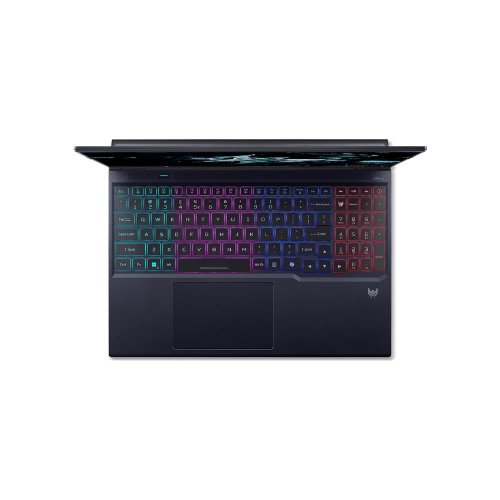
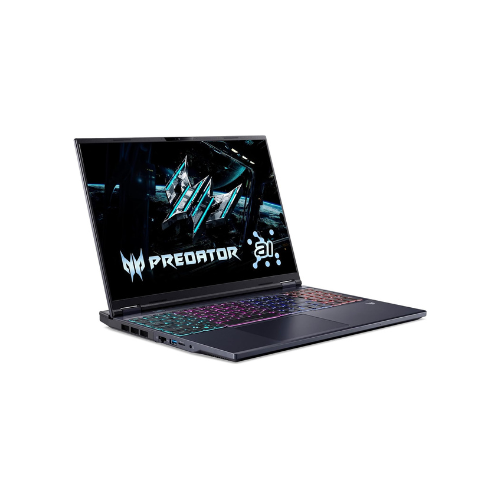
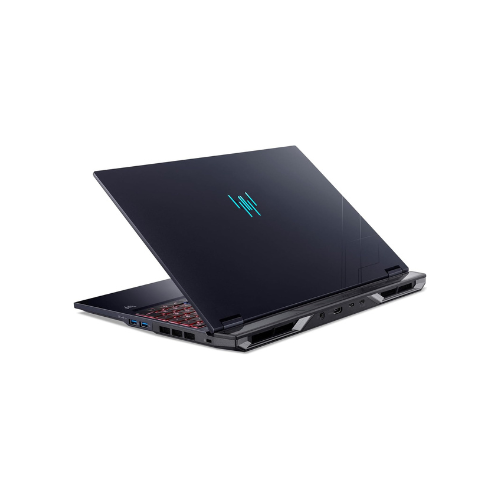
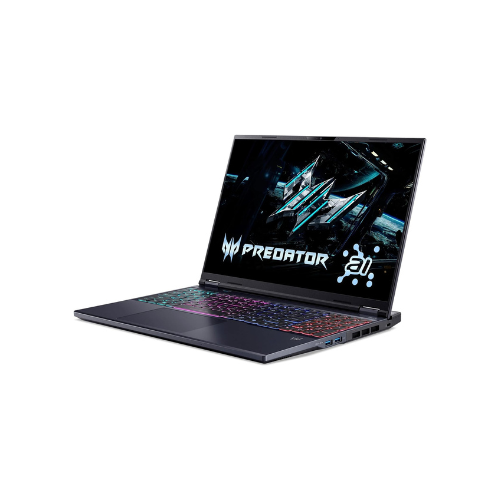
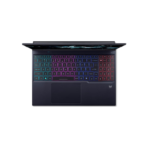
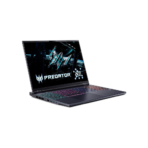
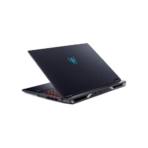
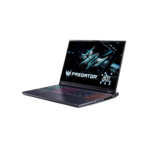
Acer Predator Helios Neo 16S AI Gaming Laptop-Intel Core Ultra 9 275HX, 16GB RAM, 1TB SSD, RTX 5060 8GB, 16″ WQXGA OLED 240Hz Display
Key Features
Brand:Acer
16″ WQXGA (2560 x 1600), OLED, CineCrystal (Glare), 16:10 Aspect Ratio, 240Hz Refresh Rate Display
Intel Core Ultra 9 275HX (2.70 GHz, 24 Threads, Tetracosa-core (24 Core™))
16GB DDR5 6400Mhz SDRAM
1TB M.2 PCI Express NVMe 4.0 SSD
NVIDIA GeForce RTX 5060 8GB GDDR7
Windows 11 Home
FAST DELIVERY
1 Year Warranty
Acer Predator Helios Neo 16S AI Gaming Laptop: Ultimate High-Speed Professional Guide
The Acer Predator Helios Neo 16S AI Gaming Laptop is a powerhouse in the professional gaming, artificial intelligence development, and content creation market. This high-performance mobile workstation eliminates processing bottlenecks while delivering crisp, clean frames for competitive gaming, complex local AI model execution, and intense multi-tasking workflows. It serves as a reliable, heavy-duty solution designed to streamline massive data analysis, high-resolution rendering, and elite gaming sessions for power users. By utilizing advanced engineering, this flexible machine helps users boost daily productivity, reduce computing downtime, and maintain a highly efficient setup. Modern creators and gamers rely on this hardware to eliminate rendering bottlenecks and automate repetitive development tasks. Its robust build quality ensures it handles high-volume processing cycles without overheating or experiencing performance drops. Power users looking to scale their computing infrastructure find this device to be an indispensable asset for daily high-fidelity production.
This comprehensive guide covers everything you need to optimize this device for your workflow.
Key Technical Specifications
Understanding the hardware capabilities helps you maximize your investment. The device balances raw speed with next-generation processing components.
- Processor Chipset: Intel Core Ultra 9 275HX processing core with dedicated AI acceleration architecture
- System Memory: 16GB high-speed DDR5 RAM for seamless multitasking transitions
- Storage Capacity: 1TB solid-state drive utilizing fast PCIe Gen 4 storage lanes
- Graphics Architecture: NVIDIA GeForce RTX 5060 graphics processor featuring 8GB dedicated video memory
- Display Technology: 16-inch WQXGA OLED panel with a rapid 240Hz refresh rate
- Thermal Management: Advanced dual-fan cooling layout with liquid metal thermal paste applications
Top Features and Business Benefits of the Acer Predator Helios Neo 16S AI
Intel Core Ultra 9 AI Processing
The advanced neural processing core means you execute local artificial intelligence workloads and complex data algorithms at competitive speeds. It processes programming compilation pipelines at lightning speeds, keeping your development or creative pipeline moving without delays.
Ultra-Smooth 240Hz OLED Display
The built-in high-refresh OLED panel allows you to view crisp visuals with deep contrast ratios and instantaneous response times. You can edit fast-paced action sequences or track fast-moving objects accurately without motion blur or color distortion.
Next-Generation RTX 5060 Graphics
Integrate the machine seamlessly into any rendering or gaming environment. Users can generate intricate 3D assets or play demanding modern gaming titles using ray-tracing features. High-resolution output configurations are fully supported through advanced architecture.
Dedicated AI Smart Tools
Using specific system management firmware, the laptop automatically balances fan acoustics, power consumption, and processing priority. This is ideal for highlighting critical workflow processes, reducing background microphone noise during stream capture, and optimizing battery efficiency.
Simple Step-by-Step Setup Guide
Follow these steps to get your professional gaming laptop running quickly.
Step 1: Unpack and Connect Power
Remove all protective sheets and packaging materials from the laptop chassis. Plug the high-capacity power adapter brick into the back of the laptop and connect it to a wall outlet.
Step 2: Complete Operating System Initializing
Open the laptop lid to trigger automatic system startup. Follow the on-screen configuration prompts to select your local layout, language preferences, and secure user account credentials.
Step 3: Establish a Network Connection
Activate the wireless network search mode using the system interface tray. Look for your local internet router access point name, enter the security password, and verify the network connection status.
Step 4: Update Graphics and System Drivers
Launch the pre-installed system management application on your desktop screen. Run the automated update scanner utility to download the latest graphics software patches and firmware layout refinements to complete the device recognition process.
Effective Troubleshooting and Maintenance
Keep your machine operating at peak performance with basic maintenance habits.
Resolving Thermal Throttling Jams
Turn off the power immediately if system performance stutters or drops under heavy loads. Open the external exhaust vents and gently blow away any accumulated dust blocking the airflow paths. Clean the intake mesh panels with a dry lint-free cloth regularly.
Fixing Framework Signal Drops
If your wireless internet or display link signal drops, restart your machine to refresh the communication drivers. Ensure you use the official power adapter brick to prevent power-saving profiles from disconnecting vital internal cards.
Cleaning the OLED Panel
Poor display clarity, fingerprint marks, or faint smudges on the glass surface indicate a dirty screen. Turn off the laptop, disconnect the power source, and wipe the OLED glass gently using a dry microfiber cloth without applying hard physical pressure.






























Reviews
There are no reviews yet.