
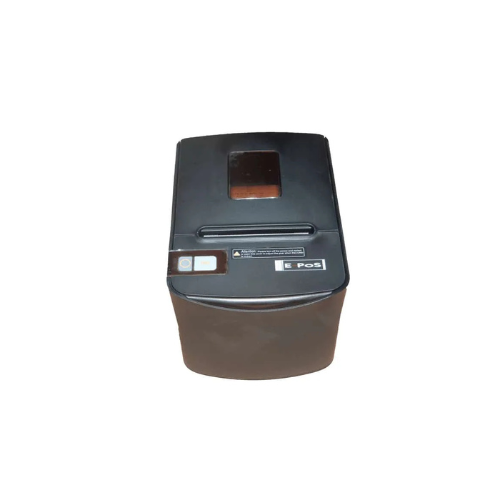
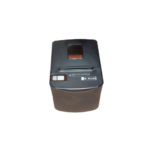
E-POS ECO 250 Thermal Receipt Printer USB+LAN
Key Features
Brand Epson
250mm/sec speed
High printing speed
Arabic Printing support
Logo printing support
Easy paper-roll installation
High printing quality
Easy to use
Aut0-cutter function
1 Year Warranty
E-POS ECO 250 Thermal Receipt Printer Review and Technical Overview
The E-POS ECO 250 Thermal Receipt Printer is a heavy-duty printing solution designed for retail, hospitality, and point-of-sale systems. Featuring dual USB and Local Area Network interfaces, this device offers fast transaction processing and seamless integration into modern business networks. This comprehensive guide covers features, technical specifications, and network installation steps.
Premium Design and Key Features
High-Speed Thermal Performance
The ECO 250 prints text and graphics at speeds up to 250 millimeters per second. It uses direct thermal technology, which removes the need for expensive ink cartridges or ribbon refills. This high speed reduces customer wait times at checkout counters.
Flexible Dual Connectivity
The printer comes equipped with built-in USB and LAN Ethernet ports. The USB interface provides simple plug-and-play installation for a single cash register, while the LAN port allows multiple computer terminals to share one printer over a local network.
Automated Heavy-Duty Cutter
An integrated auto-cutter speeds up operations by delivering clean receipt tears after every transaction. The durable cutting mechanism is designed to handle high-volume environments without jamming or dulling over time.
Rugged Industrial Build
The housing resists dust, kitchen oil, and minor spills. This durable build makes the printer ideal for busy retail counters, grocery stores, warehouse environments, and hot commercial kitchens.
Technical Specifications
Printing Method: Direct Thermal Line Printing
Print Speed: 250 mm per second
Paper Width: 80 mm standard receipt rolls
Interfaces: USB Port, LAN Ethernet Port, Cash Drawer RJ11 Port
Auto Cutter Life: Over 1.5 million clean cuts
Resolution: 203 DPI dots per inch
Power Supply: 24V External Power Adapter
Print Speed: 250 mm per second
Paper Width: 80 mm standard receipt rolls
Interfaces: USB Port, LAN Ethernet Port, Cash Drawer RJ11 Port
Auto Cutter Life: Over 1.5 million clean cuts
Resolution: 203 DPI dots per inch
Power Supply: 24V External Power Adapter
Step-by-Step Installation Guide
Hardware Connection
- Place the printer on a flat surface near a power outlet.
- Plug the power adapter into the printer back panel and connect it to the wall.
- Drop an 80mm thermal paper roll into the bay, ensuring the paper feeds from the bottom.
- Pull a small tab of paper out and close the plastic top cover firmly.
Interface Configuration
Method A: USB Local Connection
- Connect the USB cable to the printer and your point-of-sale computer.
- Turn the printer power switch to the On position.
- Download and install the official POS Printer Driver for your operating system.
- Select the corresponding USB Virtual Port in your software printing preferences.
Method B: LAN Network Connection
- Connect a standard Ethernet network cable from your local router to the printer LAN port.
- Turn on the printer while holding down the Feed button to print a self-test page.
- Read the assigned Local IP Address printed on the self-test receipt sheet.
- Enter this IP address into your point-of-sale software network printer configuration screen.
Frequently Asked Questions
Why is the printer feeding blank paper without showing any text
Thermal printers require heat-sensitive paper to display text. Ensure you are using standard 80mm thermal paper rolls. Also, confirm the paper roll is inserted facing the correct direction, as only one side of the paper reacts to the thermal print head
How do I configure this printer to open my automatic cash drawer
Connect the RJ11 cable from your cash drawer into the back of the printer. Open your computer printer driver settings, navigate to Device Settings, and set the Peripheral Unit option to open the drawer either before or after printing a receipt.
What should I do if the automatic paper cutter jams during operation
Turn off the printer power switch. Open the small front plastic cutter cover to access the internal gears. Rotate the manual gear wheel by hand until the blade retracts fully into its home position, then clear out any stuck paper pieces.
Can this thermal printer work with mobile tablets or mobile phone apps
Yes, the printer can connect over a local network. If your mobile device and printer share the same Wi-Fi router network, compatible point-of-sale applications can send print jobs directly to the printer IP address.
How often should the internal thermal print head be cleaned
Clean the print head once every month or whenever text output looks faint or displays streaks. Turn off the power, open the top cover, and wipe the black thermal element strip gently using a lint-free cotton swab dipped in pure isopropyl alcohol.






























Reviews
There are no reviews yet.