
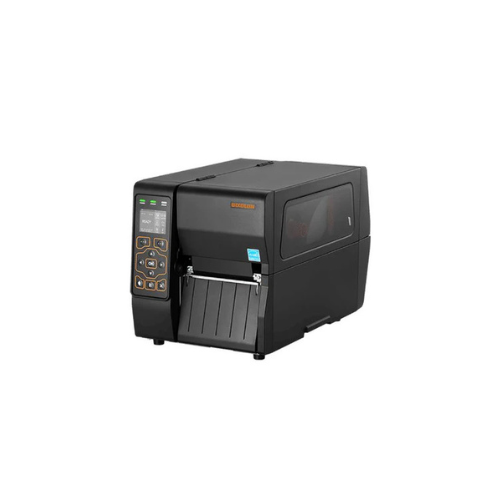
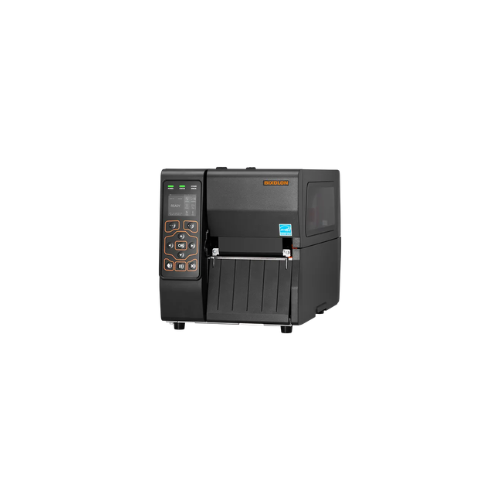
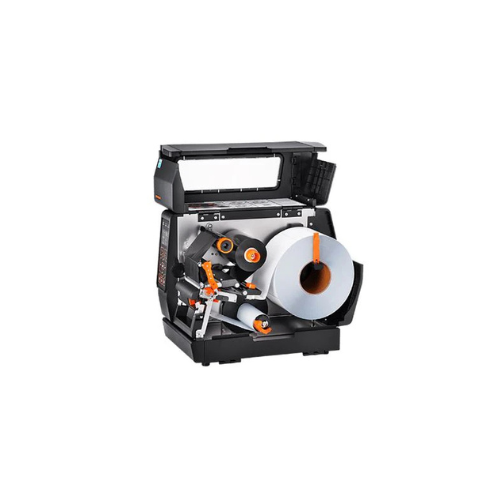
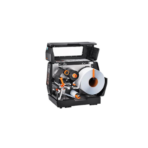
Bixolon XT3-40 Industrial Barcode Label Printer
Key Features
Brand:Bixolon
Dual Print Technology: Direct Thermal and Thermal Transfer modes.
High Print Speed: Up to 8 ips (203 mm/sec) for XT3-40 (203 dpi).
Optional High Resolution: Available 300 dpi variant (XT3-43).
Industrial Build: Rugged all-metal frame with double folding door.
2.4″ Colour LCD: Intuitive display for status and controls.
Side-Loading Supplies: Simplifies media & ribbon changes.
450 m Ribbon Support: Long ribbon capacity reduces downtime.
Versatile Connectivity: USB, USB Host, Serial, Ethernet standard; optional WLAN, Bluetooth, Parallel.
FAST DELIVERY
Bixolon XT3-40 Industrial Barcode Label Printer Ultimate Guide
The Bixolon XT3-40 is a robust four-inch industrial thermal transfer label printer engineered for high-volume barcode printing. This guide explores its structural design, operational capabilities, and setup procedures.
Key Features of the Bixolon XT3-40
Industrial Durability and Design
The printer features a heavy-duty metal body and a side-loading aluminum chassis that handles harsh warehouse environments. A compact footprint allows it to fit easily into tight workstations.
High-Speed Performance
This model delivers print speeds up to 8 inches per second at 203 dpi resolution. It keeps logistics, manufacturing, and shipping lines moving efficiently without communication lag.
Intuitive User Interface
A 2.4-inch color full-graphic LCD screen provides real-time status updates and simple menu navigation. Users can adjust settings and troubleshoot errors without a computer connection.
Versatile Media Compatibility
The printer supports large ribbon capacities up to 450 meters to minimize user intervention. It accommodates roll diameters up to 8 inches, reducing the frequency of media changes.
Technical Specifications
- Print Method: Thermal Transfer and Direct Thermal
- Print Resolution: 203 dpi standard or 300 dpi optional
- Maximum Print Width: 4.09 inches or 104 millimeters
- Memory: 128 MB SDRAM and 128 MB Flash
- Interface Ports: USB, USB Host, Serial, and Ethernet
- Media Sensors: Transmissive, Reflective, Ribbon Encoder, and Ribbon Near End
How to Set Up and Maintain the Printer
- Load Media: Open the side cover and slide the label roll onto the media supply spindle. Guide the liner through the adjustable media guides.
- Install Ribbon: Place the ribbon roll on the supply spindle and feed it beneath the printhead mechanism. Attach the leading edge to the ribbon take-up core.
- Power On: Connect the power cord to the back panel and flip the power switch to the on position.
- Calibrate Sensor: Access the LCD menu using the navigation keys. Select the calibration utility to match the sensor to your specific label gap or black mark.
- Install Drivers: Connect the printer to your PC using a USB cable. Download and install the official Bixolon Windows driver to begin formatting labels.
Frequently Asked Questions
Can the Bixolon XT3-40 print without a ribbon?
Yes. The printer operates in direct thermal mode using heat-sensitive labels, or thermal transfer mode using traditional ribbons and standard paper stock.
What ribbon configurations does this machine support?
The printer accommodates both ink-in and ink-out ribbon styles with a maximum core size of 1 inch.
How do I switch between 203 dpi and 300 dpi resolution?
The printhead can be physically upgraded in the field to switch resolutions, though you must purchase the specific Bixolon 300 dpi printhead kit.
Does this printer support wireless connectivity?
Standard configurations include wired ports, but users can install an optional factory-certified dual-band Wi-Fi or Bluetooth module for wireless networking.
What label design software is compatible with this model?
The printer works seamlessly with Bixolon Label Artist software, BarTender UltraLite, and all major third-party enterprise labeling solutions.
How do I clean the thermal printhead?
Turn off the printer, open the printhead mechanism, and gently wipe the heating elements using a clean cotton swab dipped in medical-grade isopropyl alcohol.
What causes faint or blurry print outputs?
Faint printing usually indicates an incorrect darkness setting in your driver panel, low printhead pressure, or dirt accumulation on the heating elements.
Is an automatic label cutter included?
No. The standard model features a tear-bar mechanism, but a field-installable auto-cutter or a label peeler can be added separately.






























Reviews
There are no reviews yet.