
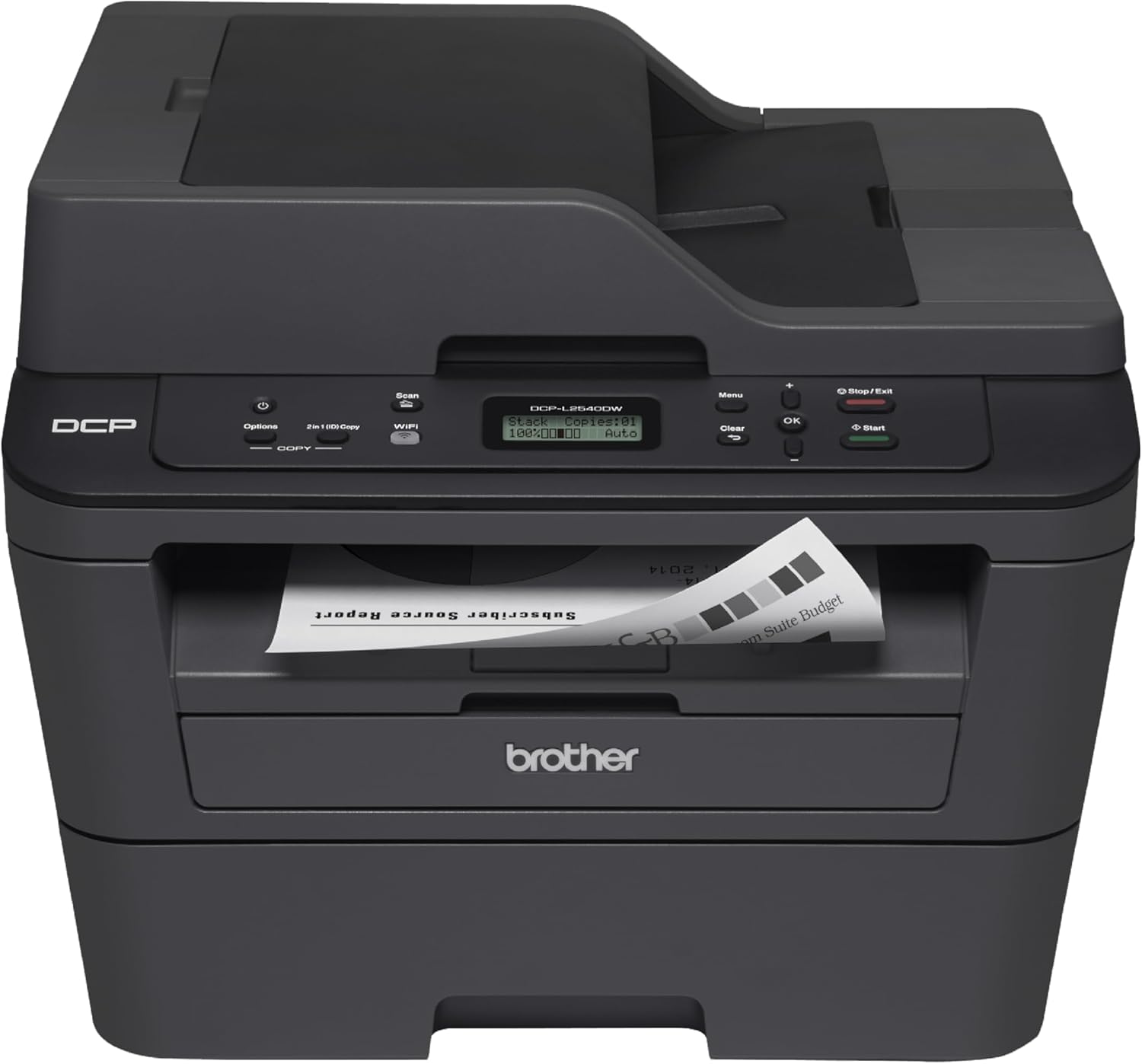
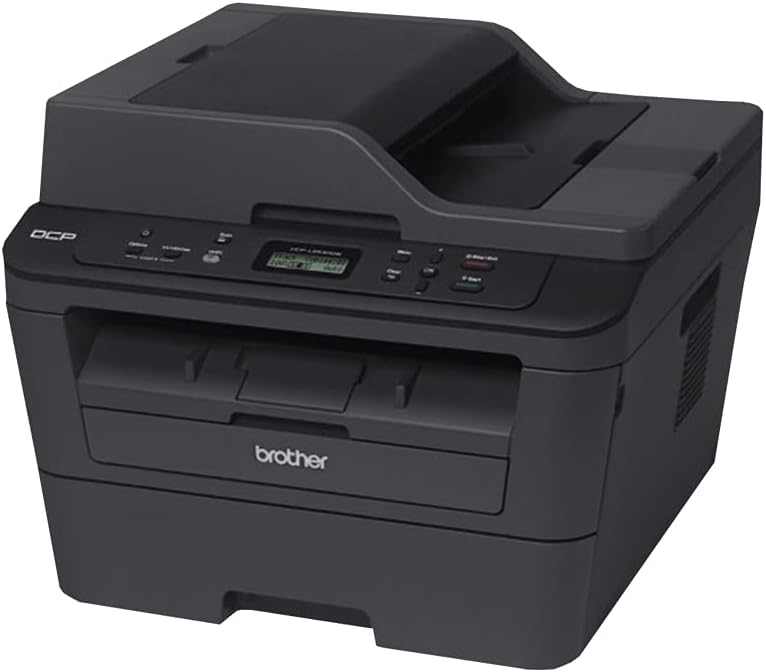
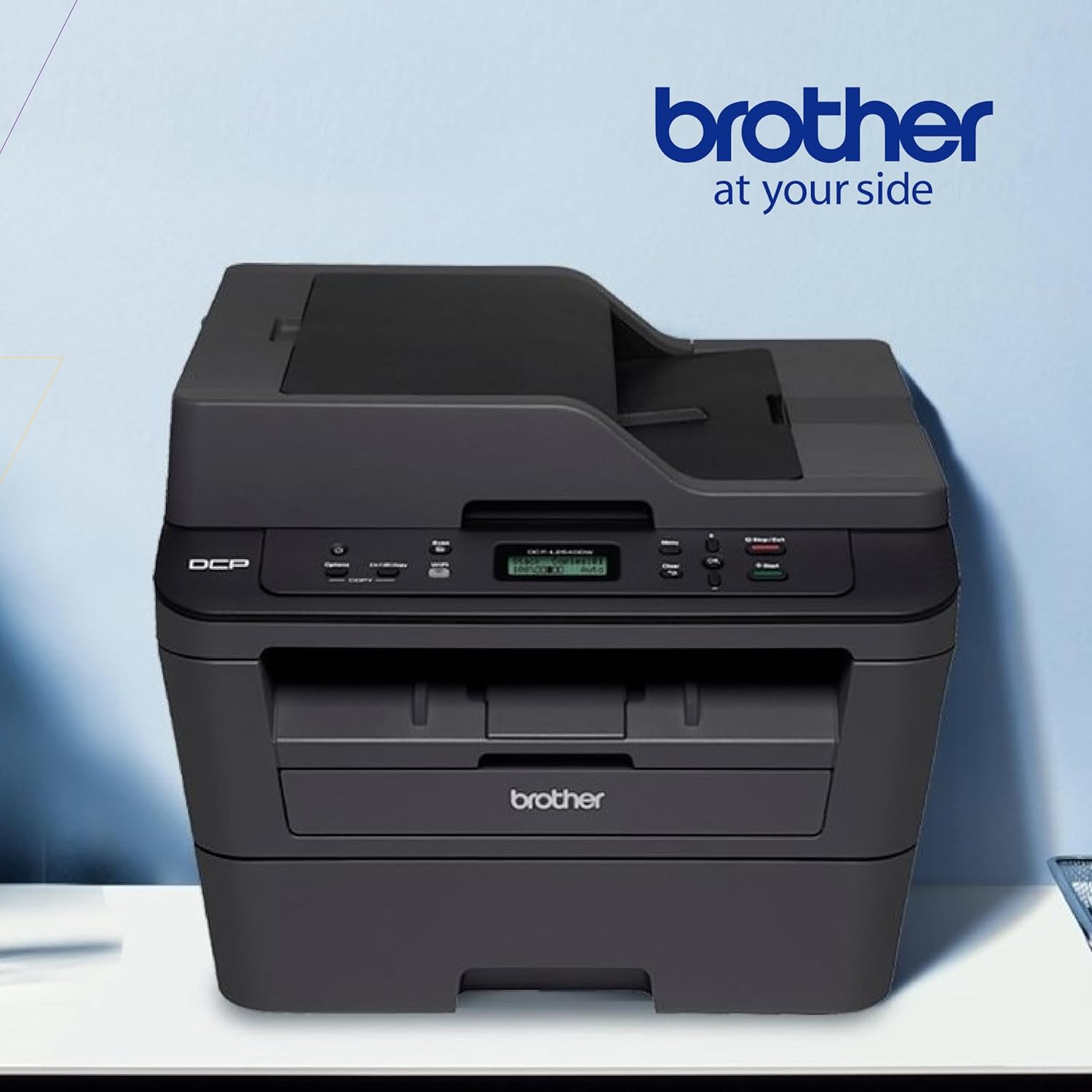
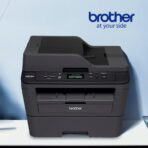
Brother DCP-L2540DW Mono Laser Printer
Key Features
Brand:Brother
Fast high quality printing and scanning at up to 30 ppm
Automatic duplex printing
Wireless and wired networking
Standalone copying
Brother DCP-L2540DW Mono Laser Printer Review and Technical Overview
The Brother DCP-L2540DW is a reliable black and white laser multi-function copier designed for busy home offices and small business environments. Combining fast monochrome printing, automatic duplexing, and versatile wireless networking, this compact machine optimizes daily document workflows. This comprehensive guide covers key product features, technical specifications, and network installation methods. [1, 2, 3, 4, 5]
Premium Design and Key Features
High Speed Monochrome Output
The printer delivers crisp black and white documents at speeds up to 30 pages per minute. This fast performance ensures business reports, legal contracts, and multi-page invoices are produced quickly, reducing wait times at the device.
Automatic Duplex Printing
An integrated automatic two-sided printing engine allows the machine to print on both sides of a single sheet of paper. This hardware capability saves time, cuts paper consumption in half, and creates professional looking two-sided business documents.
Wireless Networking and Mobile Printing
Built-in wireless networking enables seamless sharing across multiple computers on a local network. The machine supports popular mobile printing protocols, allowing users to print directly from smartphones or tablets using compatible applications.
Versatile Paper Handling and Copying
The unit features a 250-sheet capacity paper tray that handles both letter and legal size paper. A 35-page automatic document feeder sits on top of the scanner glass to automate multi-page copying and scanning tasks.
Technical Specifications
Print Technology: Electrophotographic Monochrome Laser
Print Speed: Up to 30 pages per minute
Max Resolution: 2400 by 600 dots per inch
Paper Input Capacity: 250 sheet paper tray
Document Feeder: 35 page automatic document feeder
Connectivity: Wireless 802.11bgn, Ethernet, Hi-Speed USB 2.0
Display Screen: 2 line mono LCD character display
Print Speed: Up to 30 pages per minute
Max Resolution: 2400 by 600 dots per inch
Paper Input Capacity: 250 sheet paper tray
Document Feeder: 35 page automatic document feeder
Connectivity: Wireless 802.11bgn, Ethernet, Hi-Speed USB 2.0
Display Screen: 2 line mono LCD character display
Step-by-Step Installation Guide
Hardware Connection
- Remove all protective packing tape and internal transit materials from the machine.
- Open the front cover, insert the toner cartridge into the drum unit assembly, and slide it inside.
- Pull out the paper tray, adjust the plastic paper guides, and load standard letter paper.
- Plug the power cord into an electrical outlet and turn the power switch on
Network Configuration
Method A: Wireless Setup via Wi-Fi Protected Setup
- Verify your local wireless internet router has a physical WPS button.
- Press the Menu button on the printer control panel and scroll down to the Network option.
- Select the WLAN menu, then choose the WPS option from the list.
- Press the physical WPS button on your home router when prompted by the printer screen.
Method B: Wired Network Ethernet Connection
- Insert a standard network Ethernet cable into the rear network port of the printer.
- Connect the opposite end of the cable directly to an open LAN port on your local router.
- The printer will automatically request a local IP address from your network.
- Run the official Brother installer software on your computer to detect the network printer.
Frequently Asked Questions
Why is the printer displaying a Replace Toner message after installing a new cartridge
The internal gear mechanism occasionally misses the mechanical reset flag on third-party or refilled toner cartridges. Open the front access cover while the printer is powered on. Press the Options button, then press the Start button, and use the arrow keys to manually reset the internal toner counter.
How do I clear a paper jam inside the back of the machine
Turn off the power switch and unplug the power cord from the wall outlet. Turn the machine around and pull the back cover open completely. Gently pull the jammed paper out of the fuser area using both hands to avoid tearing, then close the rear door.
Can this printer scan multi-page documents directly into a single PDF file
Yes, place your multi-page document into the top automatic document feeder tray face down. Open the official scanning software on your connected computer terminal. Select PDF as your desired output file format and check the box for multi-page document generation. [1]
Why are my printed pages showing faint vertical lines or black streaks
Faint lines or streaks usually indicate a dirty primary corona wire inside the drum unit assembly. Open the front cover and pull the drum unit out. Slide the green tab back and forth across the drum assembly several times to clean the wire, then snap the tab back into its home position.
How do I configure the machine to print on envelopes or thick cardstock
Open the manual feed slot door located on the front of the printer above the main paper tray. Slide the manual paper guides to match the width of your envelope. Insert a single piece of media until the roller pulls it in, then send your print job from your computer. [1]






























Reviews
There are no reviews yet.